How to Factory Reset Shark Robot Vacuum
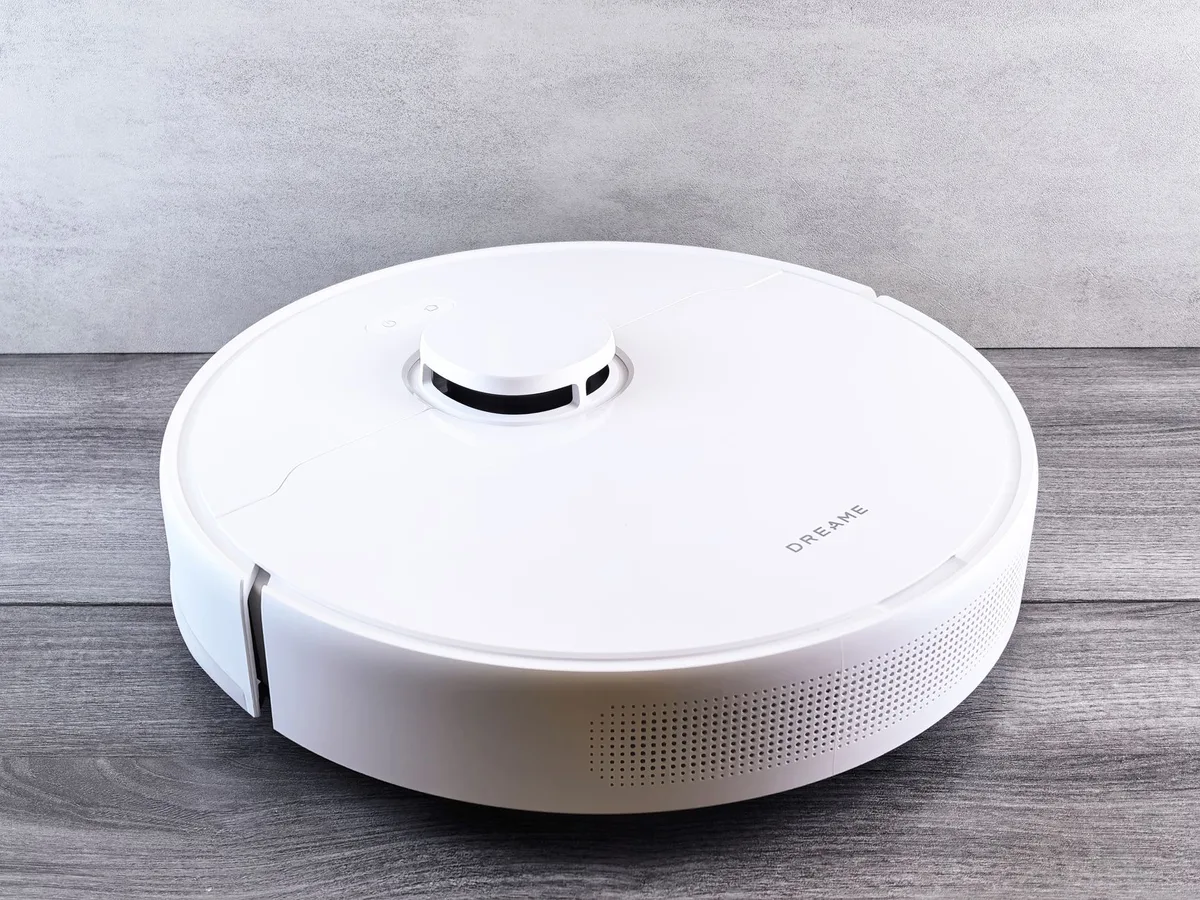
Factory resetting a Shark robot vacuum restores the machine to its original settings. It wipes Wi‑Fi credentials, map data, and any custom schedules. You’ll need a reset when the bot refuses to connect, when you’re selling it, or when a firmware update goes sideways.
The process is quick, but the exact steps depend on the model and whether you prefer the app or the physical buttons.
Why You Might Need a Factory Reset
A factory reset solves a handful of common headaches. The robot may lose its Wi‑Fi link after a router change. It can get stuck on an old map that no longer matches your floor plan.
Sometimes a scheduled clean won’t start because a corrupted profile blocks the command. If you’re handing the unit to a new owner, a reset removes your account and personal data. In each case the reset clears the slate so you can set up the vacuum fresh.
Before You Start
Gather a few things first. Make sure the robot sits on its charging dock and has at least 20 % battery. Have your phone ready with the SharkClean app installed and signed in.
Keep the Wi‑Fi network name and password handy, you’ll re‑enter them after the reset. If you plan to use the button method, locate the power and dock buttons on the unit. For official guidance you can always check the Shark official support page.
Reset Using the SharkClean App
Open the SharkClean app and tap the robot icon on the home screen. Select Settings → Robot Settings → Factory Reset. The app will warn you that all maps, schedules, and Wi‑Fi info will be erased.
Confirm the action. The robot will chime, its lights will flash, and it will reboot. When the app shows “Ready to set up,” the reset is complete.
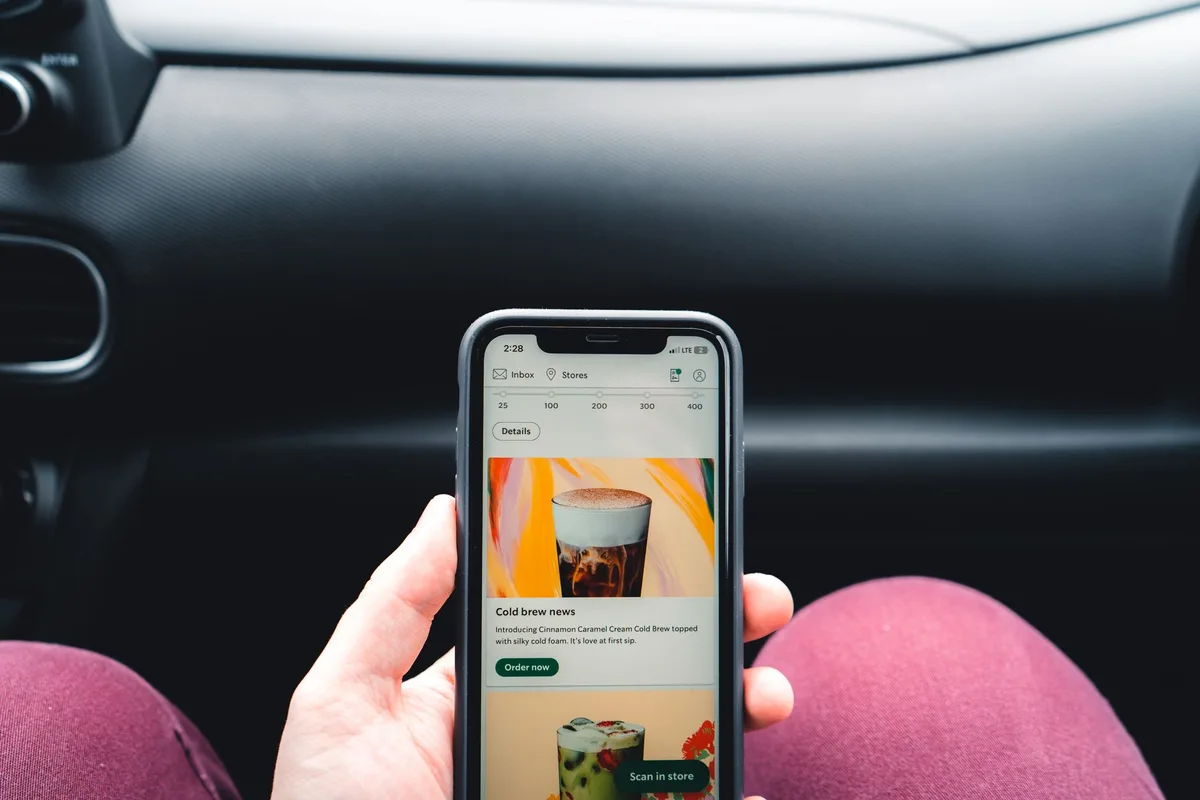
After the reboot the app walks you through a new Wi‑Fi connection and a fresh mapping run. Follow the on‑screen prompts. The whole sequence usually finishes in under five minutes.
Reset Using the Robot Buttons
If the app won’t connect, you can reset from the robot itself. Press and hold the Power button and the Dock button together for about ten seconds. The vacuum will emit a tone and the indicator ring will spin.
Release both buttons. The unit powers down, then restarts automatically. When the light ring turns solid white, the factory reset has finished.
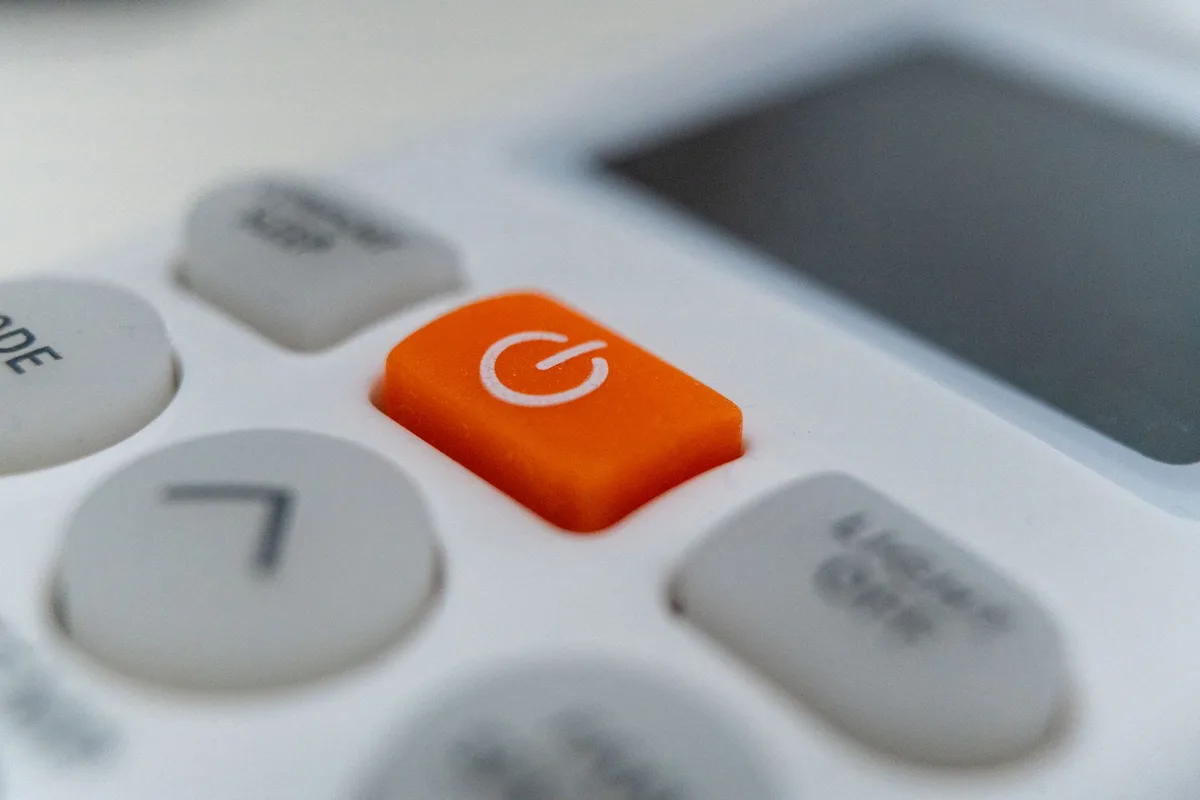
Now the robot is in setup mode. Open the SharkClean app, add a new device, and follow the standard onboarding flow.
What Happens After the Reset
All previous data disappears. The robot no longer knows your floor plan, cleaning zones, or no‑go lines. Any linked voice assistants (Alexa, Google Assistant) become unlinked.
You’ll need to re‑create schedules, set suction levels, and run a new mapping cycle. The battery calibration remains intact, so runtime won’t be affected.
Troubleshooting If the Reset Fails
Occasionally the robot refuses to enter reset mode. First, verify the battery level, charge for at least 30 minutes on the dock. Next, power‑cycle the dock by unplugging it for ten seconds.
If the button combo still produces no tone, try a longer hold: 15 seconds on both buttons. A firmware glitch can also block the reset; in that case, connect the robot to the app via Bluetooth (if your model supports it) and force a firmware update before retrying. Persistent issues may indicate a hardware fault, contact Shark support for a warranty check.
Quick Reference Checklist
- Robot on dock, ≥ 20 % charge
- Phone with SharkClean app, logged in
- Wi‑Fi SSID and password ready
- App method: Settings → Robot Settings → Factory Reset
- Button method: Hold Power + Dock 10 s (or 15 s if needed)
- After reset: Run new mapping, recreate schedules, relink voice assistants
Follow the steps that match your situation and the vacuum will be back to a clean slate in minutes.


Similar Posts