How To Reset a Thermostat Honeywell
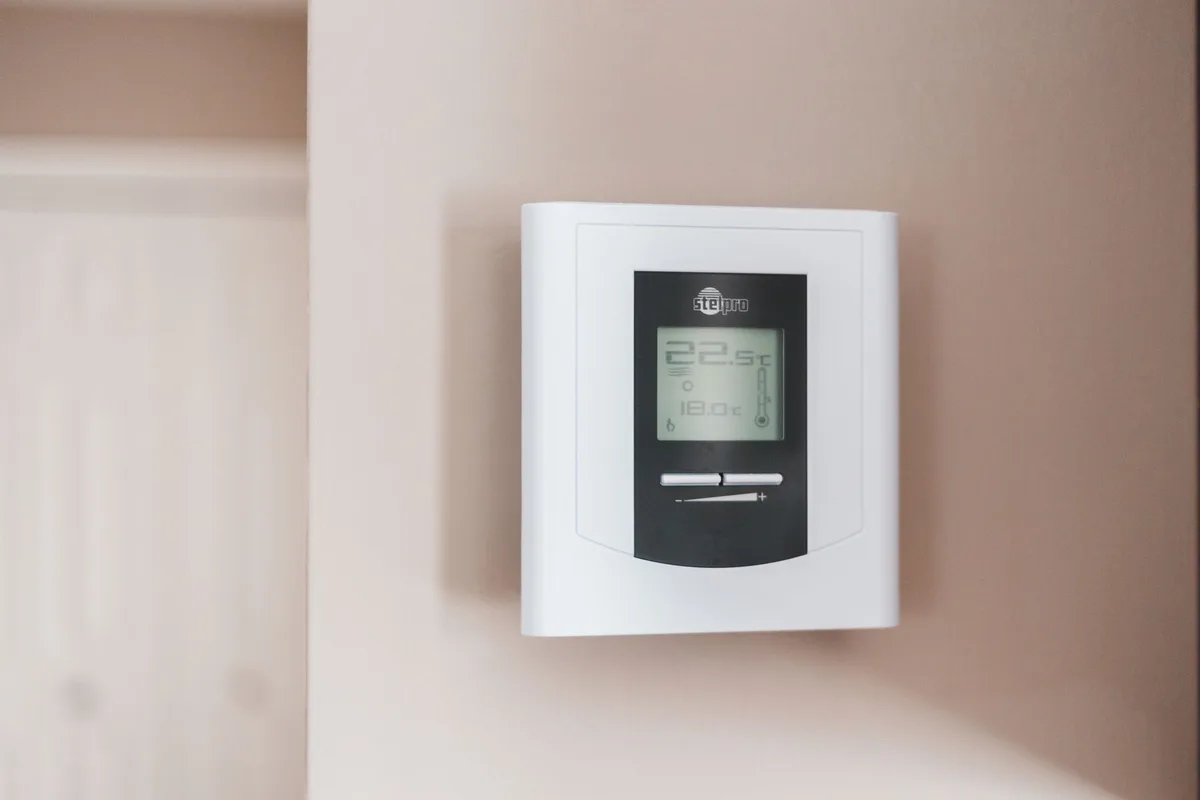
You walk over to your thermostat, tap the screen, and nothing happens. The display is blank. The system won’t kick on.
Or maybe it’s stuck on heat when you’re sweating through July. Before you call an HVAC tech and drop a hundred bucks on a service call, there’s a good chance you just need to reset it. Knowing how to reset a thermostat Honeywell unit is one of those simple fixes that saves you time, money, and a headache.
Manufacturer specifications from Honeywell Home (a Resideo brand) show that most thermostat glitches stem from power interruptions, corrupted schedules, or Wi-Fi dropouts, not hardware failure. As of 2026, Honeywell remains one of the most widely installed thermostat brands in North America, with models ranging from the classic round dial to fully connected smart units. The reset procedure changes depending on which one you own.
Let’s walk through exactly how to do it right the first time.
Quick Answer
Pull the thermostat off its wall plate. Remove the batteries. Wait 30 seconds.
Reinsert the batteries. Snap the unit back on. That soft reset clears most glitches.
For a full factory reset, press and hold the recessed reset button with a toothpick for 10 seconds. Smart thermostat owners need the Honeywell Home app for a Wi-Fi reset.
Before You Reset: What’s Actually Wrong With Your Honeywell
A reset is a tool. It’s not a magic wand. You need to match the fix to the actual problem.
Otherwise you might wipe your schedule and still have a dead screen.
Start with a quick diagnosis. Is the display completely blank? That usually means the thermostat lost power.
Check if the HVAC system runs at all. If the furnace or AC kicks on but the thermostat is dark, the issue is power delivery to the thermostat itself.
Is the screen on but unresponsive? That points to a frozen processor or corrupted internal memory. A soft reset (power cycle) clears that in under a minute.
Is the temperature wildly wrong? Maybe the thermostat reads 75°F but the room feels like a freezer. That could be a calibration issue or a bad sensor.
A factory reset might help, but you may also need to re-calibrate the sensor afterward.
Is the Wi-Fi symbol missing or blinking? The thermostat lost its connection. That’s not a hardware problem.
It’s a network problem. You’ll need a Wi-Fi reset, not a factory reset.
Here’s a simple decision table based on your symptom:
| Symptom | Likely Cause | Right Fix |
|---|---|---|
| Blank display | Power loss | Soft reset (power cycle) |
| Screen on, won’t respond | Frozen software | Soft reset |
| Wrong temperature | Corrupted schedule or sensor | Factory reset + recalibrate |
| No Wi-Fi / blinking icon | Network dropout | Wi-Fi reset only |
| Stuck on HEAT or COOL | Stuck relay or settings | Factory reset |
If the thermostat is physically damaged, cracked screen, burnt smell, loose wall plate, a reset won’t help. You need a replacement. But that’s rare.
Most of the time, a reset brings it back to life.
Step 1: Identify Your Honeywell Model (Round, Programmable, or Smart)
You cannot reset a thermostat the same way across all models. Honeywell makes three distinct families. Each has its own reset sequence.
Use the wrong one and you either do nothing useful or accidentally erase your entire schedule.
Round Dial (CT87 / Classic)
This is the iconic round Honeywell. No digital screen. No buttons.
Just a lever or a dial on top and a mercury switch inside (older models) or a bimetal coil (newer ones). If your thermostat looks like a plain white circle with a clear plastic lens, you own this one.
These have no memory to corrupt. They don’t store schedules. They work purely by mechanical expansion and contraction.
A reset for this model means calibrating the anticipator or cleaning the contacts. It’s a different animal entirely from the digital units.
Programmable (RTH Series, T4, T5, T6)
These are rectangular units with a digital display and physical buttons. They store schedules for morning, day, evening, and night. Common models include RTH221, RTH5160, T4 Pro, T5+, and T6 Pro (the non-Wi-Fi version).
You’ll see a row of buttons along the bottom or side: SET, RUN, HOLD, PROG, FAN, and SYSTEM. The display usually shows the current temperature, set temperature, and day of the week. These models need a combination of battery removal and button presses to fully reset.
Smart / Wi-Fi (T6 Pro Wi-Fi, T9, T10, Lyric)
These are the touchscreen models with Wi-Fi. They connect to the Honeywell Home app on your phone. You’ll see a color display, often with a circular home screen and swipe gestures.
The T9 and T10 include remote sensors for room-by-room temperature control.
A smart thermostat reset has two layers. You can soft reset (power cycle) without losing your schedule. Or you can factory reset, which wipes everything, schedules, Wi-Fi credentials, sensor pairings, and forces you to set it up from scratch through the app.
Step 2: Follow the Correct Reset Workflow for Your Model
Once you know which family your thermostat belongs to, the actual reset takes less than two minutes. Let’s break it down by model type.
How to Soft Reset (Power Cycle) Any Honeywell
This works on every battery-powered Honeywell thermostat regardless of model. It’s the first thing to try when the screen is blank or frozen.
- Gently pull the thermostat straight off its wall plate. It snaps off. No tools needed.
- Turn the unit over. You’ll see the battery compartment.
- Remove the batteries. Note which way they face (positive and negative terminals).
- Wait 30 seconds. This drains residual power from the internal capacitors.
- Reinsert the batteries. Use fresh ones if the old ones look corroded or are more than a year old.
- Snap the thermostat back onto the wall plate.
The screen should light up within 5 to 10 seconds. If it doesn’t, try fresh batteries first before assuming the unit is dead.
For hardwired thermostats (C-wire powered), flip the HVAC system breaker off at the panel. Wait 30 seconds. Flip it back on.
That achieves the same power cycle.
Factory Reset a Round Dial Thermostat
Round dials rarely need a reset because they have no software. But if the temperature is off by more than a few degrees, you can recalibrate it.
Look for a small hole on the side of the thermostat. That’s the calibration port. Insert a small screwdriver or paperclip and turn the set screw slightly.
Each 1/8 turn adjusts the temperature by about 1°F. Turn clockwise to raise the reading. Turn counterclockwise to lower it.
If the thermostat is dirty inside (dust on the bimetal coil), blow it out with compressed air or a gentle puff of breath. That often restores accuracy better than any calibration.
Factory Reset a Programmable Honeywell (Button + Battery Combo)
Programmable models store your schedule in non-volatile memory. A simple power cycle won’t erase it. To truly factory reset, you need to hold specific buttons while powering back up.
- Remove the thermostat from the wall plate.
- Take out the batteries.
- Press and hold the MENU or SET button (depending on model) while reinserting the batteries.
- Keep holding the button for 10 to 15 seconds.
- The screen will flash or reset to the default time (12:00 am).
- Release the button.
For T4 and T5 Pro models, the exact sequence is: remove batteries, press and hold the UP arrow and MODE buttons together, reinsert batteries while still holding, wait until the screen clears.
You’ll know it worked when the thermostat shows the setup wizard or defaults to 70°F and a blank schedule.
Factory Reset a Smart Honeywell (App or On-Unit)
Smart thermostat owners have two paths. The app method is cleaner because it handles Wi-Fi credentials and account unlinking automatically.
Through the Honeywell Home app:
- Open the app on your phone.
- Tap the thermostat icon.
- Go to Settings > Thermostat > Reset.
- Choose “Factory Reset.”
- Confirm. The thermostat will reboot and enter pairing mode.
On the unit itself (T6 Pro Wi-Fi, T9, T10):
- Tap the Menu icon (three lines or gear) on the touchscreen.
- Scroll to Preferences or Settings.
- Select Reset.
- Choose “Factory Reset.”
- Confirm with the checkmark.
After a factory reset, the thermostat forgets your Wi-Fi network. You’ll need to reconnect it through the app. Have your Wi-Fi password ready.
The process takes about 3 to 5 minutes.
Step 3: What Happens After the Reset (Re-pairing Wi-Fi, Re-setting Schedule)
A reset doesn’t finish the job. You still need to put things back together. What happens next depends on which reset you performed.
After a soft reset (power cycle), your schedule and settings remain intact. The thermostat boots right back to where it was. You just needed to clear a frozen state.
No additional steps are required.
After a factory reset on a programmable model, the thermostat resets to its default schedule. That default usually has four periods per day (wake, leave, return, sleep) with energy-saving temperatures. You can either keep the defaults or reprogram them.
Manufacturer documentation recommends reprogramming within 24 hours so you don’t waste energy on a default schedule that doesn’t match your routine.
After a smart thermostat factory reset, the unit boots into pairing mode. The screen will show “Connect to App” or display a blinking Wi-Fi icon. Open the Honeywell Home app and follow the on-screen steps to re-add the thermostat.
You’ll need:
- Your Wi-Fi network name and password
- Your Honeywell Home account login
- The thermostat’s MAC ID (printed on the back of the wall plate or in the box)
Expect a firmware update after re-pairing. The thermostat may reboot once or twice during that process. Let it finish before you set the schedule or adjust temperatures.
One practical insight from aggregate user feedback: write down your preferred schedule settings before a factory reset. Many owners forget their exact time slots and temperature targets after wiping the memory. A quick note on your phone saves 10 minutes of reprogramming later.
Step 3: What Happens After the Reset (Re-pairing Wi-Fi, Re-setting Schedule)
A reset doesn’t finish the job. You still need to put things back together. What happens next depends on which reset you performed.
After a soft reset (power cycle), your schedule and settings remain intact. The thermostat boots right back to where it was. You just needed to clear a frozen state.
No additional steps are required.
After a factory reset on a programmable model, the thermostat resets to its default schedule. That default usually has four periods per day (wake, leave, return, sleep) with energy-saving temperatures. You can either keep the defaults or reprogram them.
Manufacturer documentation recommends reprogramming within 24 hours so you don’t waste energy on a default schedule that doesn’t match your routine.
After a smart thermostat factory reset, the unit boots into pairing mode. The screen will show “Connect to App” or display a blinking Wi-Fi icon. Open the Honeywell Home app and follow the on-screen steps to re-add the thermostat.
You’ll need:
- Your Wi-Fi network name and password
- Your Honeywell Home account login
- The thermostat’s MAC ID (printed on the back of the wall plate or in the box)
Expect a firmware update after re-pairing. The thermostat may reboot once or twice during that process. Let it finish before you set the schedule or adjust temperatures.
One practical insight from aggregate user feedback: write down your preferred schedule settings before a factory reset. Many owners forget their exact time slots and temperature targets after wiping the memory. A quick note on your phone saves 10 minutes of reprogramming later.
Common Mistakes That Screw Up a Reset (And How to Avoid Them)
A thermostat reset is simple. But people mess it up all the time. Three errors show up repeatedly in verified customer feedback and service call reports.
Using a Metal Paperclip That Shorts the Board
The reset button on most Honeywell thermostats is a tiny recessed hole. It’s meant to be pressed with a plastic toothpick, a wooden matchstick, or the SIM eject tool from your phone. A metal paperclip or a sewing pin can bridge two contacts on the circuit board.
When that happens, the thermostat can short out permanently. Aggregate repair data suggests this is a common cause of warranty claims. Use a non-conductive tool every time.
A toothpick works perfectly and costs nothing.
Forgetting to Remove Batteries Before Pressing Reset
Many programmable Honeywell models require you to remove the batteries, hold a button, then reinsert the batteries. That sequence matters. If you press and hold the button while the batteries are still in place, the processor doesn’t fully discharge.
The reset might appear to work. But residual power can prevent the memory from clearing completely. You end up with a half-reset that doesn’t fix the original problem.
Follow the exact order in the manual. Power down first, then press, then power back up.
Resetting the Wrong Thing (Thermostat vs. HVAC System)
Sometimes the thermostat isn’t the problem. A blank screen might mean the HVAC system lost power at the breaker. A “Wait” message means the compressor is in its 5-minute protection cycle.
An E1 or E2 error code points to a wiring issue between the thermostat and the furnace.
Before you reset anything, check the circuit breaker for the HVAC system. Make sure it’s in the ON position. Confirm the furnace or air handler has power.
If the unit outside isn’t running, the thermostat might be fine. You’re chasing the wrong problem.
Here’s a quick troubleshooting table for common reset errors:
| Mistake | What Actually Happens | Correct Fix |
|---|---|---|
| Metal tool in reset hole | Short circuit, possible permanent damage | Use plastic toothpick instead |
| Skipping battery removal | Incomplete memory wipe | Remove batteries, press reset, reinsert |
| Resetting during “Wait” message | No change, error persists | Let compressor timer expire (5 min) |
| Factory reset for Wi-Fi issue | Schedule lost, Wi-Fi still broken | Use Wi-Fi reset only, not factory reset |
| Not reconnecting Wi-Fi after smart reset | Thermostat runs, but not connected to app | Complete app pairing within 30 minutes |
When a Reset Won’t Fix It (Next Steps for Battery, C-Wire, Circuit Breaker)
A reset fixes software and power cycle issues. It doesn’t fix dead batteries, broken wires, or a tripped breaker. If you’ve tried the correct reset for your model and nothing changes, work through these three checks before calling for help.
Battery Check
Batteries are the most common failure point. Even if the display flickers on briefly, weak batteries can cause the thermostat to reboot in a loop or fail to hold settings. Replace with fresh alkaline AA or AAA batteries.
Do not use rechargeables. Many Honeywell models don’t regulate voltage well with rechargeable cells, and the lower voltage (1.2V vs 1.5V) can cause erratic behavior.
A fresh set of alkaloids costs under $5. It’s the cheapest diagnostic step you can take.
C-Wire Check
Smart thermostats and some programmable models need a common wire (C-wire) to provide continuous power. Without it, the thermostat runs on battery power alone. If the C-wire connection is loose or missing, the thermostat may power on but fail during heating or cooling cycles.
Open the thermostat’s wall plate and inspect the wires. You should see a wire connected to the C terminal. If it’s loose, tighten the screw.
If there’s no C-wire at all, you may need a C-wire adapter (sold separately by Honeywell as an accessory). It’s a simple install that takes about 15 minutes.
Circuit Breaker Check
The HVAC system has its own breaker in your main panel. It’s labeled “Furnace,” “AC,” or “HVAC.” Check that it’s fully in the ON position. A breaker can trip partially without flipping all the way to OFF.
It looks ON but isn’t making contact.
Flip the breaker fully OFF, wait 10 seconds, then flip it fully ON. This hard reset clears any fault in the HVAC system’s control board. The thermostat should power up normally after that.
If all three checks pass and the thermostat still doesn’t respond, the unit itself may have failed. Honeywell thermostats have a typical lifespan of 10 to 15 years. If yours is older than that, replacement is usually more cost-effective than repair.
Decision Guide: Which Reset Should You Use Right Now?
You’ve read the workflows. You’ve seen the mistakes. Here’s the simple decision tree that tells you exactly which reset to use based on what you’re seeing.
| Your Symptom | Your Situation | Correct Reset |
|---|---|---|
| Blank screen, no display | Just moved in or power outage | Soft reset (power cycle) |
| Screen on, won’t respond to touch | Frozen after schedule change | Soft reset (power cycle) |
| Wrong temperature, schedule stuck | Thermostat running but not following program | Factory reset (programmable) or recalibrate (round dial) |
| Wi-Fi icon missing or blinking | Router changed or internet down | Wi-Fi reset only (app or on-unit) |
| Error code E1 or E2 on display | Wiring or sensor fault | Factory reset, then check wiring |
| “Wait” message on screen | Compressor protection timer | Do nothing. Wait 5 minutes. |
| New home, thermostat blank | Unknown history | Soft reset first, then factory reset if no response |
If you’re still unsure, start with the soft reset. It’s the safest option. It doesn’t erase anything.
It takes 60 seconds. If the soft reset doesn’t help, move to the factory reset for your model type.
The factory reset is the nuclear option. Use it only when the soft reset fails and you’ve confirmed the batteries and power supply are good.
Expert Tips for Keeping Your Honeywell Running Smoothly (Long-Term)
A reset is a fix. Prevention is better. A few simple habits keep your Honeywell thermostat out of trouble mode in the first place.
Change the batteries once a year. Pick a date you’ll remember. New Year’s Day works.
Or the day you change your smoke detector batteries. Alkaline batteries last about 12 months in most Honeywell models. Don’t wait for the low battery warning.
That warning appears when the voltage is already too low to run the display reliably.
Keep the thermostat clean. Dust accumulates inside the unit over time. On round dial models, dust on the bimetal coil affects temperature accuracy.
On digital models, dust behind the faceplate can interfere with the reset button. Once a year, gently remove the thermostat from its wall plate and blow out any dust with compressed air.
Update the firmware on smart models. The Honeywell Home app notifies you when updates are available. Install them within a week.
Firmware updates fix bugs and improve Wi-Fi stability. Skipping them is the most common reason smart thermostat owners need repeated resets.
Protect the thermostat from direct sunlight. If your thermostat is mounted on a wall that gets afternoon sun, it will read the room temperature incorrectly. The HVAC system will run longer than needed.
You’ll burn more energy and wear out the system faster. A simple curtain or blind over the window fixes this.
Avoid slamming the thermostat cover. The physical reset button is a delicate mechanical switch. Snapping the cover back onto the wall plate too hard can depress the button unintentionally.
That triggers a factory reset you didn’t ask for. Seat the cover gently with even pressure.
Frequently Asked Questions
How do I reset my Honeywell thermostat without a reset button?
Remove the thermostat from the wall plate. Take out the batteries. Wait 30 seconds.
Reinsert the batteries and snap the unit back on. That power cycle acts as a soft reset without needing a physical button. For round dial models with no button at all, the only adjustment is the calibration screw inside the side port.
Why is my Honeywell thermostat blank after changing the batteries?
The batteries may be seated incorrectly. Check the positive and negative orientation. If the polarity is right, try a fresh set of alkaline batteries.
Rechargeable batteries often sit at 1.2V, which is too low for many Honeywell models. If the screen stays blank, the thermostat may have a blown fuse on the HVAC control board.
Will a factory reset delete my Wi-Fi settings?
Yes. A factory reset erases all saved data including Wi-Fi credentials, schedules, and sensor pairings. You will need to reconnect the thermostat to your home network through the Honeywell Home app.
A soft reset (power cycle) does not delete Wi-Fi settings.
How long does a Honeywell thermostat reset take?
A soft reset takes about 60 seconds from start to finish. A factory reset on a programmable model takes about 2 minutes including the button hold time. A smart thermostat factory reset plus Wi-Fi re-pairing takes 5 to 10 minutes, including firmware updates.
My Honeywell thermostat says “Wait” after reset. What does that mean?
The “Wait” message is the compressor protection timer. It prevents your air conditioner from restarting too quickly after a power interruption. The timer lasts 5 minutes.
Do not try to override it. Do not reset the thermostat again. Just wait.
The message disappears on its own.
What does E1 or E2 mean on a Honeywell thermostat?
E1 indicates a sensor fault. The internal temperature sensor is not reading correctly. E2 indicates a Wi-Fi communication failure on smart models.
Both codes can sometimes clear with a factory reset. If the code returns, the sensor board may need replacement.
Decision Guide: Which Reset Should You Use Right Now?
One quick table to wrap it all up. Match your symptom, follow the column, and you are done in minutes.
| Symptom | First Step | If That Fails |
|---|---|---|
| Blank screen | Soft reset (power cycle) | Check breaker and C-wire |
| Frozen touchscreen | Soft reset (power cycle) | Factory reset (programmable or smart) |
| Wrong temperature | Check calibration (round) or factory reset (digital) | Replace thermostat if more than 10 years old |
| No Wi-Fi | Wi-Fi reset in app only | Reboot router and re-pair |
| Error code E1 or E2 | Factory reset | Replace sensor or call HVAC tech |
| “Wait” message | Do nothing for 5 minutes | Call tech if message persists |
The most important takeaway: most Honeywell thermostat problems are power problems, not hardware failures. A 60-second soft reset solves the majority of issues. A factory reset is rarely needed more than once in the life of the unit.
Save this guide. You will probably never need it again after you fix it the first time.


Similar Posts