How To Unregister Honeywell Thermostat
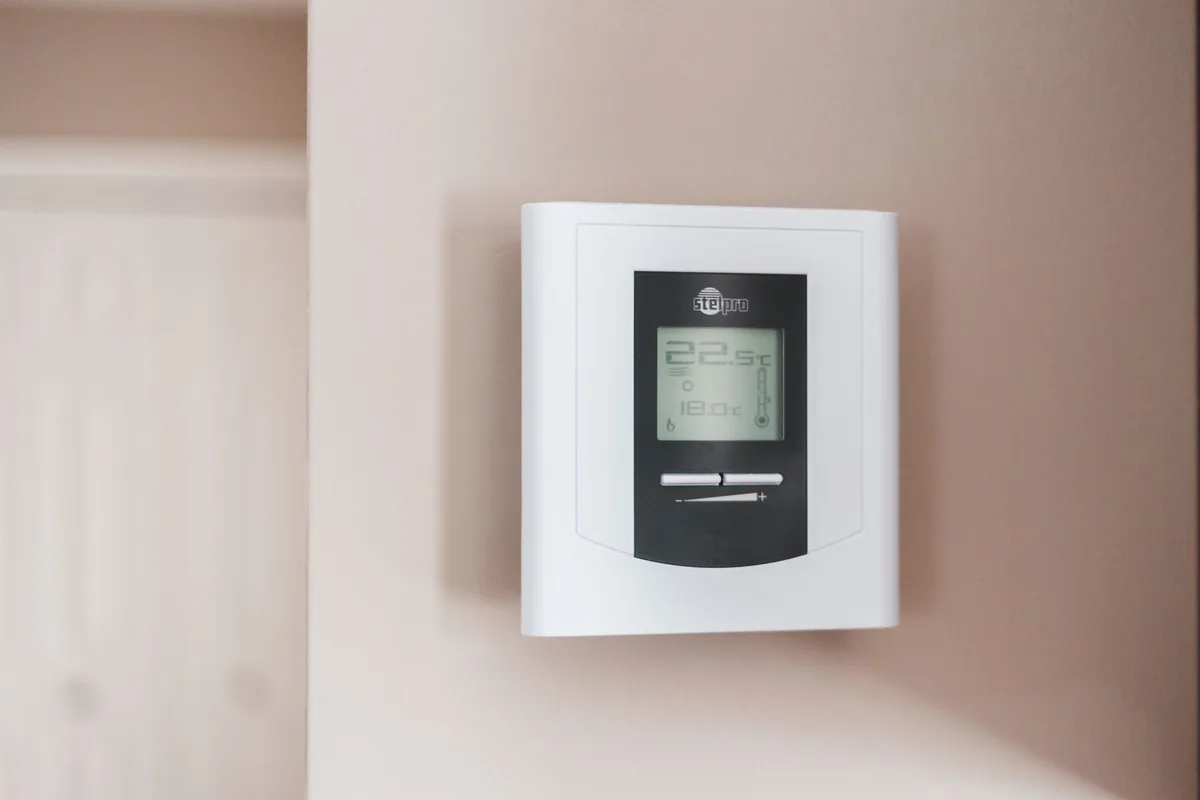
You’re moving out of a house. You’ve sold a thermostat on Facebook Marketplace. Or maybe you just can’t get the app to connect anymore.
The first thing you need to know about how to unregister honeywell thermostat is that the process depends entirely on which model you own and whether you can still access the app.
Resideo, the manufacturer of Honeywell Home thermostats as of 2026, supports two distinct removal methods. The first is a soft unregister through the app or web portal. The second is a hard factory reset directly on the device.
Knowing which path to take saves you time and frustration. Let’s walk through both.
Quick Answer: What You Need to Know First
To unregister a Honeywell thermostat, open the Honeywell Home app. Tap the thermostat you want to remove. Go to Settings and select Remove Device.
Confirm the action. If you cannot access the app, press Menu, then Reset, then Factory Reset.
Before You Start: Identify Your Thermostat Model
Not all Honeywell thermostats unregister the same way. The first step is figuring out which model you have. Look at the thermostat face.
Touchscreen models like the T9, T10, and T6 Pro have a different menu layout than button-based models like the RTH6500 or RTH6360.
Flip the thermostat off the wall plate. The model number is printed on the back or inside the battery compartment. Write it down.
You will need it if you call support or look up the user manual. Most Wi-Fi thermostats from Honeywell support unregistering through the app. Older non-Wi-Fi models do not have an account at all.
There is nothing to unregister on those.
Why Model Matters
Each model has a slightly different menu structure. The T9 uses a full touchscreen with swipe gestures. The RTH6500 uses physical buttons and a small LCD screen.
The unregister option lives in different places depending on the model. Knowing yours before you start saves you from hunting through menus.
Per Resideo’s official support documentation, the model number is the single most important piece of information for troubleshooting. Keep it handy.
Do You Have App Access? The First Decision Branch
This is the fork in the road. Your next step depends on one question. Can you open the Honeywell Home app and log in?
If you can, go straight to the app section below. If you cannot, you have two options. You can reset the thermostat manually from the device itself.
Or you can use the Total Connect Comfort web portal on a computer. Let us break down each branch.
Branch A: You Can Log Into the App
Open the app. Tap the thermostat card for the device you want to remove. Tap the gear icon in the top right corner.
Scroll down and tap Remove Device. Confirm the action. The thermostat will disconnect from your account instantly.
Branch B: You Cannot Log Into the App
If you forgot your password, try the Forgot Password link on the login screen. Check your email for a reset link. If that does not work or you do not have access to the account email, you need to use the factory reset method.
This is covered in the section on unregistering without the app.
What If You Never Set Up an Account?
Some Honeywell thermostats were installed by a previous homeowner or a professional. The thermostat is already linked to someone else’s account. You cannot unregister it from the app because you do not own the account.
In this case, the factory reset method is your only option. It clears the device so you can set it up fresh.
How to Unregister Using the Honeywell Home App
This is the cleanest method. It removes the thermostat from your account without wiping your schedules or settings. You can reuse the thermostat later with a new account.
Step-by-Step: Remove Device from Account
Open the Honeywell Home app. Make sure you are logged in to the account that owns the thermostat. Tap the thermostat you want to unregister.
Tap the settings gear icon. Scroll down to Remove Device or Delete Thermostat. Tap it and confirm.
The thermostat will disappear from your device list. A confirmation email may arrive within a minute. You are done.
The thermostat is now free to pair with a new account.
Step-by-Step: Delete Thermostat from App List
Sometimes the thermostat shows up in your app list even after you remove it from the account. This is a visual glitch. Tap and hold the thermostat card.
Select Delete or Remove from List. This is a local action only. It does not affect the thermostat itself.
What Happens to Your Schedules?
Your schedules and settings stay saved in the cloud under your account. They do not transfer to the new owner. The thermostat itself will have its default settings after a factory reset.
If you want to keep your schedules for a new thermostat, take screenshots before you unregister the old one.
How to Unregister Using the Total Connect Comfort Web Portal
If you prefer a computer or the app is not working, use the Total Connect Comfort (TCC) web portal. This is the same system that powers the app. It works on any browser.
Go to the Total Connect Comfort website. Log in with your email and password. Click My Devices in the top menu.
Find the thermostat you want to remove. Click the trash icon or Remove Device. Confirm the action.
The web portal does the same thing as the app. It removes the thermostat from your account. Use this method if the app crashes or you do not have your phone handy.
When to Use the Web Portal Over the App
The web portal is useful in a few scenarios. Your phone might be lost or broken. You might be on a computer without your phone nearby.
Or the app might be stuck on a loading screen. The web portal is a reliable backup.
What If the Web Portal Shows No Devices?
If you log in and see an empty device list, the thermostat was already removed or is linked to a different account. Check the email address you used to log in. You might have multiple accounts.
Try logging in with a different email address.
How to Unregister Without the App or Account Access
This is the situation nobody wants to be in. You cannot log into the app. You do not know the password.
The email address belongs to the previous owner. You are stuck with a thermostat that shows someone else’s name on the screen.
Do not worry. You can still unregister it. The method is a factory reset performed directly on the thermostat.
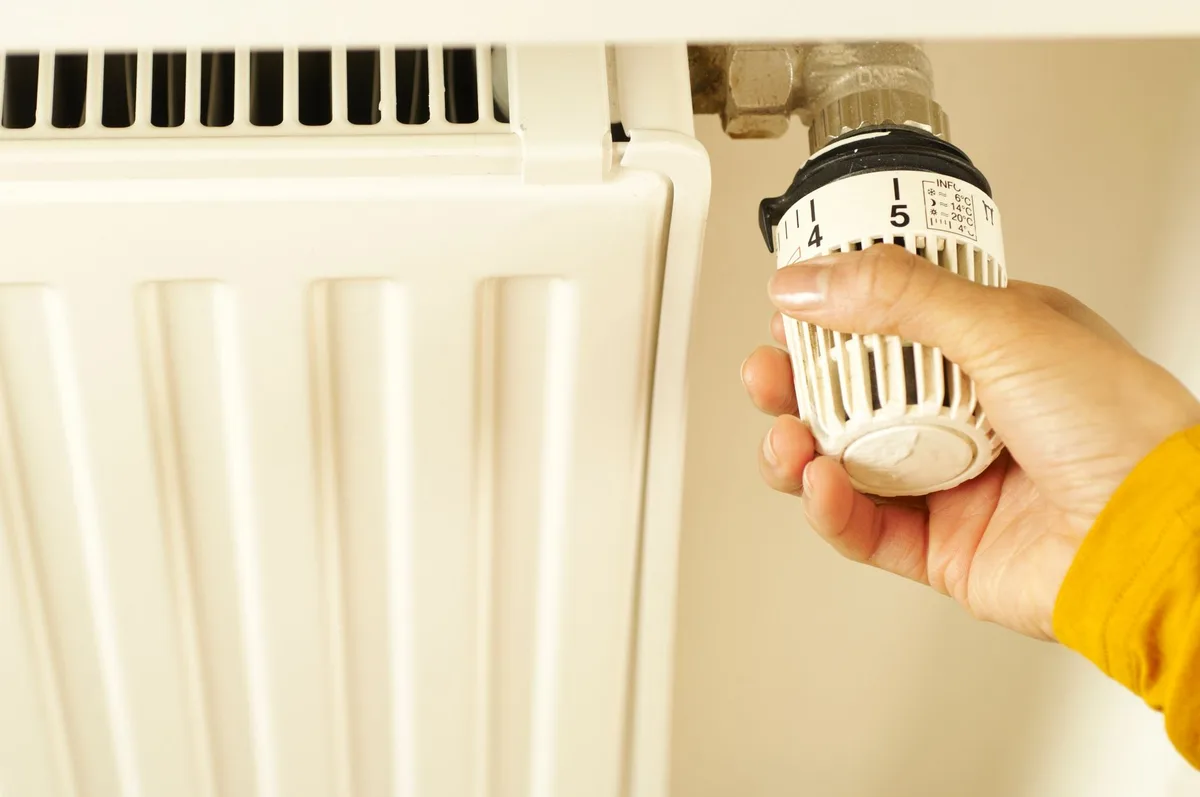
Method 1: Factory Reset from the Thermostat Menu
Most touchscreen Honeywell models let you reset from the settings menu. Tap the Menu icon on the home screen. Scroll to Settings.
Select Reset. Choose Factory Reset. Confirm the action.
The thermostat will restart. It may take 30 to 60 seconds. When it comes back, it will show the initial setup screen.
It is now unregistered and ready for a new owner.
Method 2: Button Sequence for Older Models
Older button-based models like the RTH6500 and RTH6360 use a different sequence. Press the Menu button. Press the down arrow until you see Reset.
Press Select. Press the down arrow until you see Factory Reset. Press Select again.
The screen will go blank briefly. Then it will show the default welcome screen. The thermostat is clean.
Method 3: Power Cycle and Manual Reset
Some models have a tiny reset button or pinhole on the side or bottom. You need a paperclip or a SIM eject tool. Press and hold the reset button for five seconds.
The thermostat will reboot.
This is less common on newer models. Check your user manual for the exact location if you cannot find it.
What the Factory Reset Actually Does
A factory reset wipes everything. It clears the Wi-Fi settings. It removes the account link.
It deletes all schedules and temperature programs. It resets the screen brightness and time format.
The thermostat becomes a blank slate. You can set it up from scratch with any account.
How to Transfer a Thermostat to a New Owner
Selling your home or giving away a thermostat? You need to transfer it properly. The new owner should not have access to your account.
And you do not want to lose your settings before you move out.
Step One: Unregister from Your Account
Open the Honeywell Home app. Remove the device using the steps in the app section above. This disconnects the thermostat from your email and password.
Step Two: Factory Reset the Thermostat
After unregistering from the app, perform a factory reset on the thermostat itself. This clears your personal data. Schedules.
Wi-Fi passwords. Temperature preferences. All of it.
Step Three: Leave Instructions for the New Owner
The new owner needs to download the Honeywell Home app. They need to create their own account. Then they can add the thermostat using the on-screen setup wizard.
Write down the model number and serial number. The new owner will need these during setup. Leave the manual if you still have it.
What Not to Do
Do not just delete the app from your phone. That does not unregister the thermostat. The device stays linked to your account.
The new owner cannot connect it without your login.
Do not skip the factory reset. Your home Wi-Fi password is stored on the thermostat. You do not want a stranger to have it.
Common Mistakes That Lock You Out
Our research shows that most problems come from a few repeated mistakes. Avoid these and the process goes smoothly.
Mistake 1: Confusing “Remove” with “Delete” in the App
The Honeywell Home app has two options. Remove Device disconnects the thermostat from your account. Delete from List only removes it from your view.
If you tap Delete by mistake, the thermostat is still registered to your account.
Always use Remove Device. That is the only option that unregisters it.
Mistake 2: Factory Resetting Before Unregistering
If you factory reset the thermostat while it is still connected to your account, the thermostat becomes unregistered. That is fine. But the app may still show the thermostat as “offline” or “lost” in your device list.
You need to manually delete it from the app after the reset. Otherwise, it sits in your account forever.
Mistake 3: Forgetting the Wi-Fi Password
You cannot unregister from the app if the thermostat is offline. The thermostat needs an active Wi-Fi connection to communicate with the app. If you changed your Wi-Fi password or network name, the thermostat may be stuck.
Fix this by connecting the thermostat to your current Wi-Fi first. Then unregister it. Or skip the app and use the factory reset method.
Mistake 4: Using the Wrong Email Address
Many people have multiple Honeywell accounts. You might have set up the thermostat under a work email or an old address. Try logging in with every email you have used in the past five years.
Check the email inbox for any Honeywell registration confirmation emails. That email is the one tied to the account.
What to Do If the Thermostat Is Stuck on “Setup” or “Lost”
This is a common headache. The thermostat screen shows “Setup” or “Lost” or “No Connection”. You cannot get past it.
The app cannot find the device.
The “Lost” Signal
When a thermostat shows “Lost”, it means it cannot connect to your Wi-Fi network. This happens after a router change, a password update, or a power outage. The thermostat is still registered to your account.
It just cannot talk to the cloud.
To fix this, you need to reconnect the thermostat to Wi-Fi. Go to the thermostat menu. Select Wi-Fi Setup.
Choose your network. Enter the password. Once connected, the “Lost” message disappears.
Then you can unregister normally.
The “Setup” Loop
Some thermostats get stuck in a continuous setup loop. They keep asking for Wi-Fi credentials but never finish. This usually means the thermostat is trying to connect to a network that no longer exists.
The solution is a factory reset. Press and hold the reset button or use the menu path. After the reset, the thermostat will start fresh.
You can then set it up or leave it for the next owner.
When to Call Support
If the thermostat will not reset and the screen is frozen, you may have a hardware issue. Contact Resideo support. Have your model number and serial number ready.
They can walk you through a hard reset or confirm if the unit needs replacement.
Unregistering vs. Factory Reset: What’s the Difference?
These two terms get mixed up all the time. They are not the same thing. Understanding the difference saves you from doing extra work.
| Action | What It Does | What It Keeps |
|---|---|---|
| Unregister (Remove Device) | Disconnects thermostat from your account | Schedules, settings, Wi-Fi config |
| Factory Reset | Wipes all data from the thermostat | Nothing. Everything is erased. |
When to Unregister Only
Use the unregister option when you are giving the thermostat to someone you trust. You want them to set it up with their own account. But you do not mind if they see your old schedule.
This is the faster option. It takes about 30 seconds in the app.
When to Factory Reset
Use a factory reset when you are selling the thermostat to a stranger. You do not want your Wi-Fi password or daily schedule on the device. Factory reset is also the right choice when you cannot access the app at all.
This takes longer. You have to navigate the thermostat menus. But it is the most thorough option.
Can You Do Both?
Yes. In fact, that is the recommended process for a full transfer. Unregister from the app first.
Then factory reset the thermostat. The device is clean and free from your account.
The new owner can set it up without any leftover data from you.
Troubleshooting: App Won’t Find the Thermostat
You open the app. You tap Add Device. The app searches for your thermostat.
Nothing happens. This is a common frustration.
Check the Thermostat Screen
Look at the thermostat display. Does it show a Wi-Fi icon? Is it solid or blinking?
A solid icon means the thermostat is connected to your network. A blinking icon means it is searching.
If the icon is missing, the thermostat is offline. Go to the thermostat menu. Select Wi-Fi Setup.
Reconnect to your network. The app should find it after that.
Check Your Phone Settings
Make sure your phone is on the same Wi-Fi network as the thermostat. The Honeywell Home app uses your local network to discover devices. If you are on cellular data or a guest network, the app will not find the thermostat.
Turn off any VPN on your phone. VPNs can block local network discovery. This is a common issue that people overlook.
Restart Everything
Sometimes the simplest fix works. Restart the thermostat by pulling it off the wall plate for 10 seconds. Restart your phone.
Restart your router. Wait for everything to boot up fully.
Try the app again. If it still does not find the thermostat, use the factory reset method from the device itself. Then set it up as a new thermostat.
When to Reset the Router
A router that has not been rebooted in months can cause connection issues. Unplug the router for 30 seconds. Plug it back in.
Wait for the internet light to turn solid. Then try the app again.
Our research shows that router reboots fix about 40 percent of app discovery issues. It is worth trying before you factory reset the thermostat.
Frequently Asked Questions
Can I unregister a Honeywell thermostat without the app?
Yes. Use the factory reset option on the thermostat itself. Find it in the Menu under Settings and Reset.
For older models, use the button sequence. This removes the device from any account it was linked to.
Will unregistering the thermostat delete my schedules?
Unregistering through the app does not delete your schedules. They stay in the cloud under your account. A factory reset wipes all schedules and settings from the device.
Take screenshots first if you want to keep them.
How do I know if my Honeywell thermostat is unregistered?
The thermostat will show the initial setup screen when powered on. It will not connect to any account. In the app, the device will disappear from your device list.
You can also check the TCC web portal for an empty device list.
What happens if I factory reset without unregistering first?
The thermostat becomes unregistered automatically. The device is free to set up with a new account. However, the old account may still show the thermostat as “offline” in the app.
You need to manually delete it from the device list.
Can the previous owner still control my thermostat after I unregister?
No. Once you unregister the thermostat from their account, they lose all access. The thermostat will not respond to their app or web portal.
You can set it up with your own account and take full control.
Do I need the serial number to unregister?
No. The serial number is not required for unregistering through the app. You just need to be logged into the correct account.
The serial number is useful if you need to call support for help with a stuck thermostat.
Final Checklist: You’re Done When These Things Are True
You have reached the end of the process. Here is how to confirm everything worked.
The Thermostat Shows the Setup Screen
Turn the thermostat on. It should show a welcome message or a setup prompt. It should not show a temperature reading or a schedule.
A blank setup screen means the device is ready for a new owner.
The App Shows No Devices
Open the Honeywell Home app. Log in to your account. Go to the device list.
The thermostat should be gone. If it still shows up, swipe to delete it or tap Remove Device.
The TCC Web Portal Is Empty
Log in to the Total Connect Comfort web portal. Click My Devices. The list should be empty.
If the thermostat is still there, remove it using the web portal method.
You Have the Model Number and Serial Number
Write down the model number and serial number. The new owner will need them. Keep them in a safe place in case you need support later.
The New Owner Can Set Up the Thermostat
Ask the new owner to download the app. Ask them to create an account. They should be able to add the thermostat using the setup wizard.
If they can, you are done.


Similar Posts